
Want to create your own pixel LED effects instead of relying on generic presets? Pixel LED Animator 3 gives you full creative control — design custom animations and export them directly for use in LedEdit, Jinx!, Madrix, and more.
In this step-by-step tutorial, you’ll learn how to go from a blank canvas to a fully exported SWF effect ready for LedEdit.
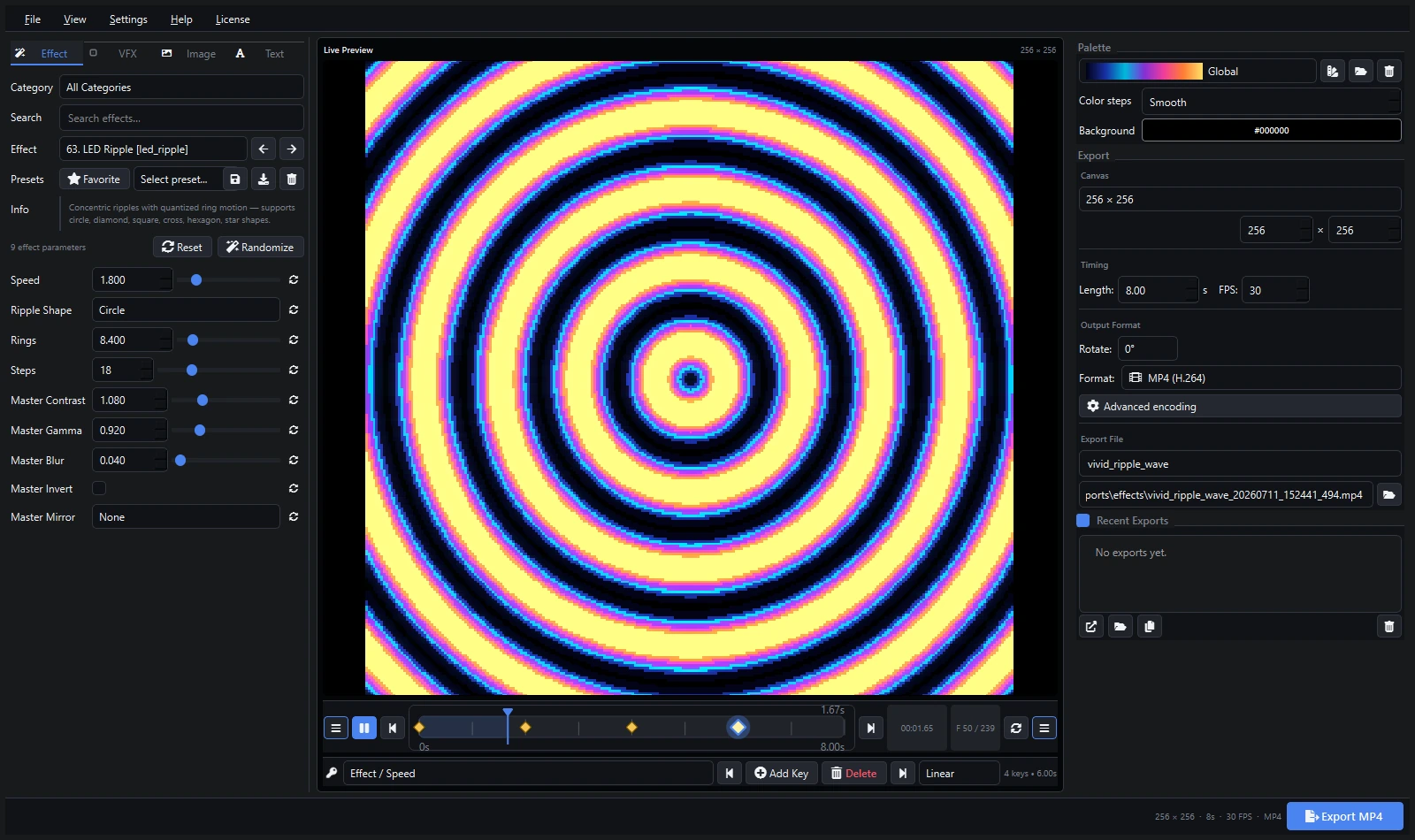
What You’ll Need
- Pixel LED Animator 3 — Buy on Lemon Squeezy
- LedEdit — any version (2013–2024)
- Windows 10 or 11
Step 1: Set Up Your Project
- Launch Pixel LED Animator 3
- Click New Project
- Set your LED matrix dimensions (e.g., 32×32 for a standard panel, or custom for your setup)
- Choose frame rate — 25 FPS is a safe default for most LED controllers
- Set duration — start with 5 seconds for testing
Step 2: Design Your Effect
Pixel LED Animator 3 comes with 100+ built-in effects to start from:
- Browse the Effects Library and pick a base effect (e.g., “Color Waves”)
- Customize:
- Colors — choose your palette or create a gradient
- Speed — adjust animation speed with the slider
- Direction — horizontal, vertical, diagonal movement
- Blending — layer multiple effects for complex visuals
Pro Tip: Layer Effects
For truly unique results, combine 2–3 effects using the layer system:
- Base layer: slow gradient sweep
- Middle layer: geometric pattern with transparency
- Top layer: sparkle or particle overlay
Step 3: Preview in Real-Time
Use the Real-Time Preview pane to see exactly how your effect will look on an LED matrix. Tweak colors, timing, and layers until you’re satisfied.
Step 4: Export for LedEdit (SWF Format)
LedEdit works best with SWF (Flash) files for pixel effects:
- Click Export → SWF
- Set quality to High
- Match resolution to your LedEdit project (e.g., 32×32)
- Click Render and save the file
Note: For LedEdit 2016 and newer, you can also use MOV format for higher quality. For LedEdit 2014, stick with SWF.
Step 5: Import into LedEdit
- Open LedEdit and create a new project
- Go to Effects → Import SWF
- Select your exported file
- Map it to your LED channels
- Test on your display
Step 6: Export for Other Software
Pixel LED Animator 3 supports multiple formats:
| Format | Best For |
|---|---|
| SWF | LedEdit (all versions) |
| AVI | Jinx!, Glediator |
| MOV | Madrix, LEDEdit 2016+ |
| MP4 | Resolume, VJ software, social media |
| GIF | Web previews, sharing |
| PNG sequence | xLights, advanced editing |
Taking It Further
Once you’ve mastered the basics, try:
- Importing images and converting them into LED animations
- Using the auto-play feature for continuous effect generation
- Batch exporting multiple variations of an effect
Related Resources
- Download ready-made LED effects (4,200+ pack) — instant content for your LED projects
- VJ Loop Studio Tutorial — create professional VJ loops and LED visuals
- SWF vs AVI vs MOV vs MP4 Guide — choose the right format for your software
Get Pixel LED Animator 3 on Lemon Squeezy
Create stunning pixel LED effects in minutes. Instant download.