Pixel LED displays are a fantastic way to add vibrant, dynamic visuals to everything from VJ performances and concert stages to Christmas decorations and architectural lighting. With Pixel LED Animator 3, you can create stunning custom effects that are compatible with popular software like LedEdit, Jinx! LED, and more.
This comprehensive guide will walk you through every step of creating and exporting pixel LED effects using Pixel LED Animator 3 — from initial setup to final export.
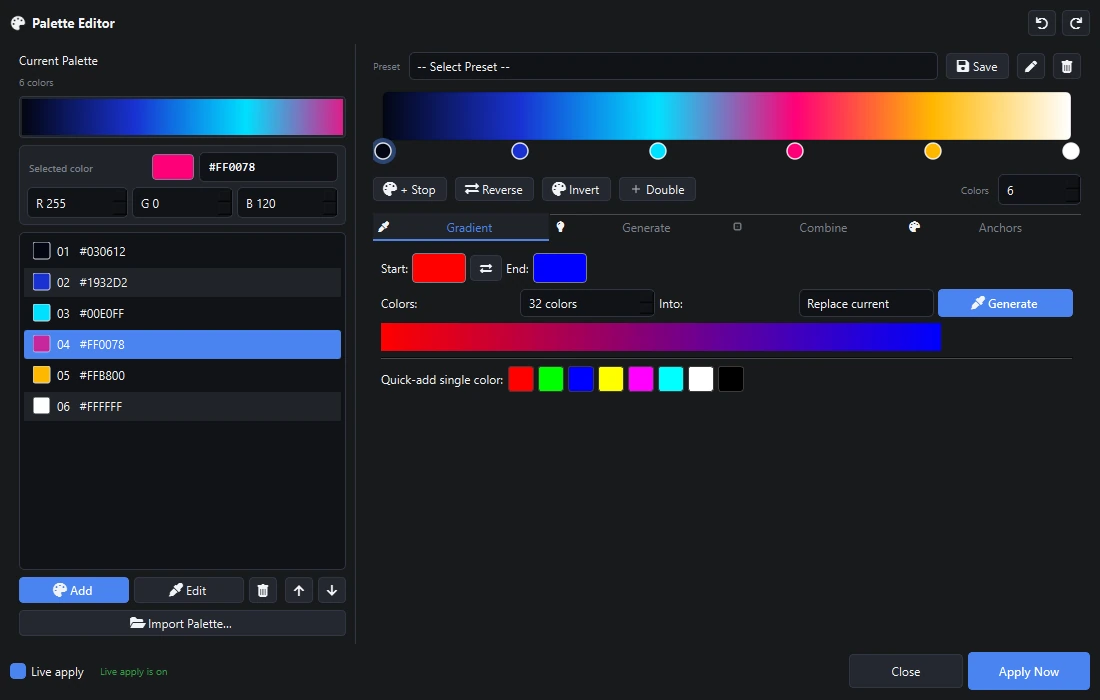
Pixel LED Animator 3 provides a powerful color editor with advanced palettes and gradients
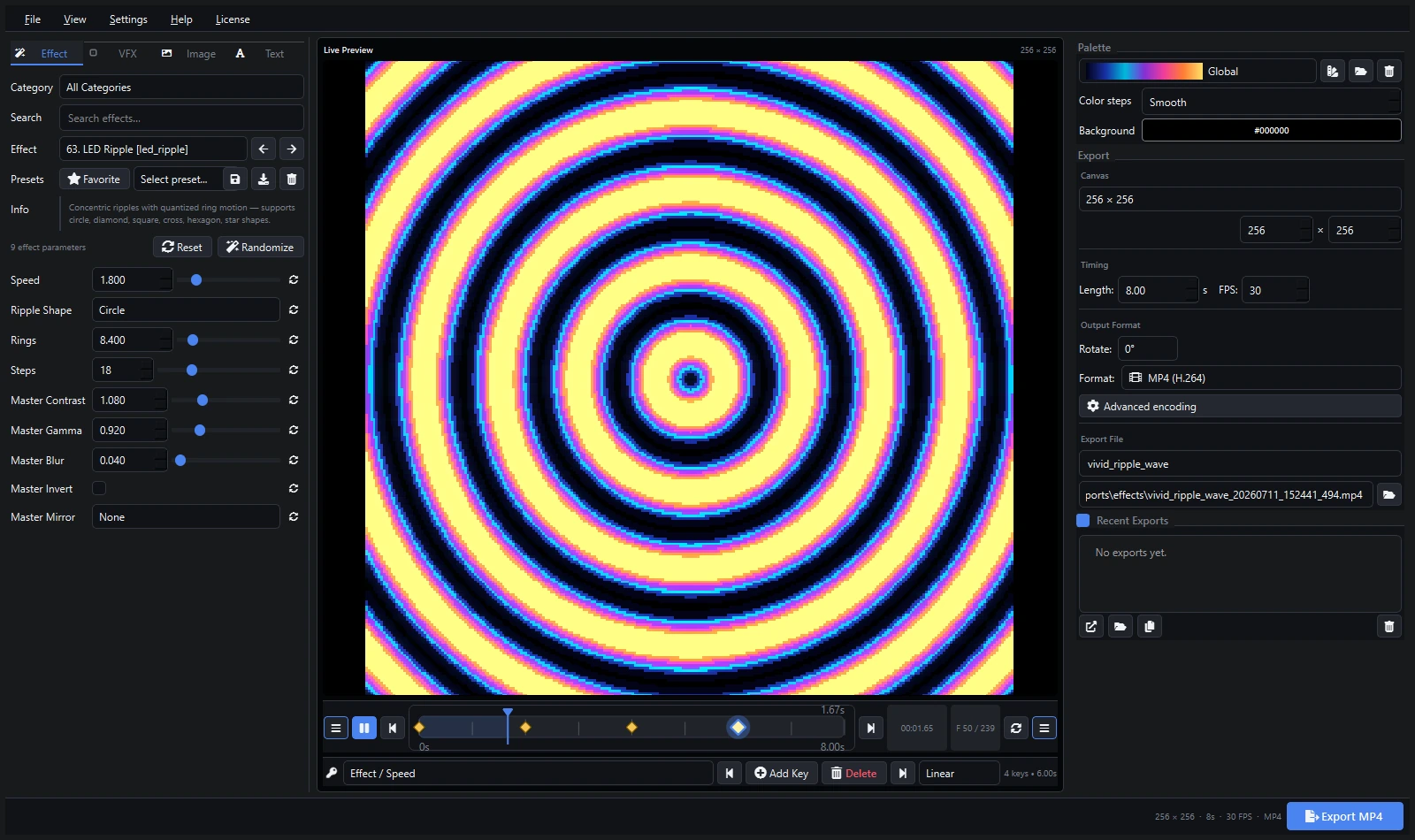
Design complex grid-based effects with precise pixel-level control
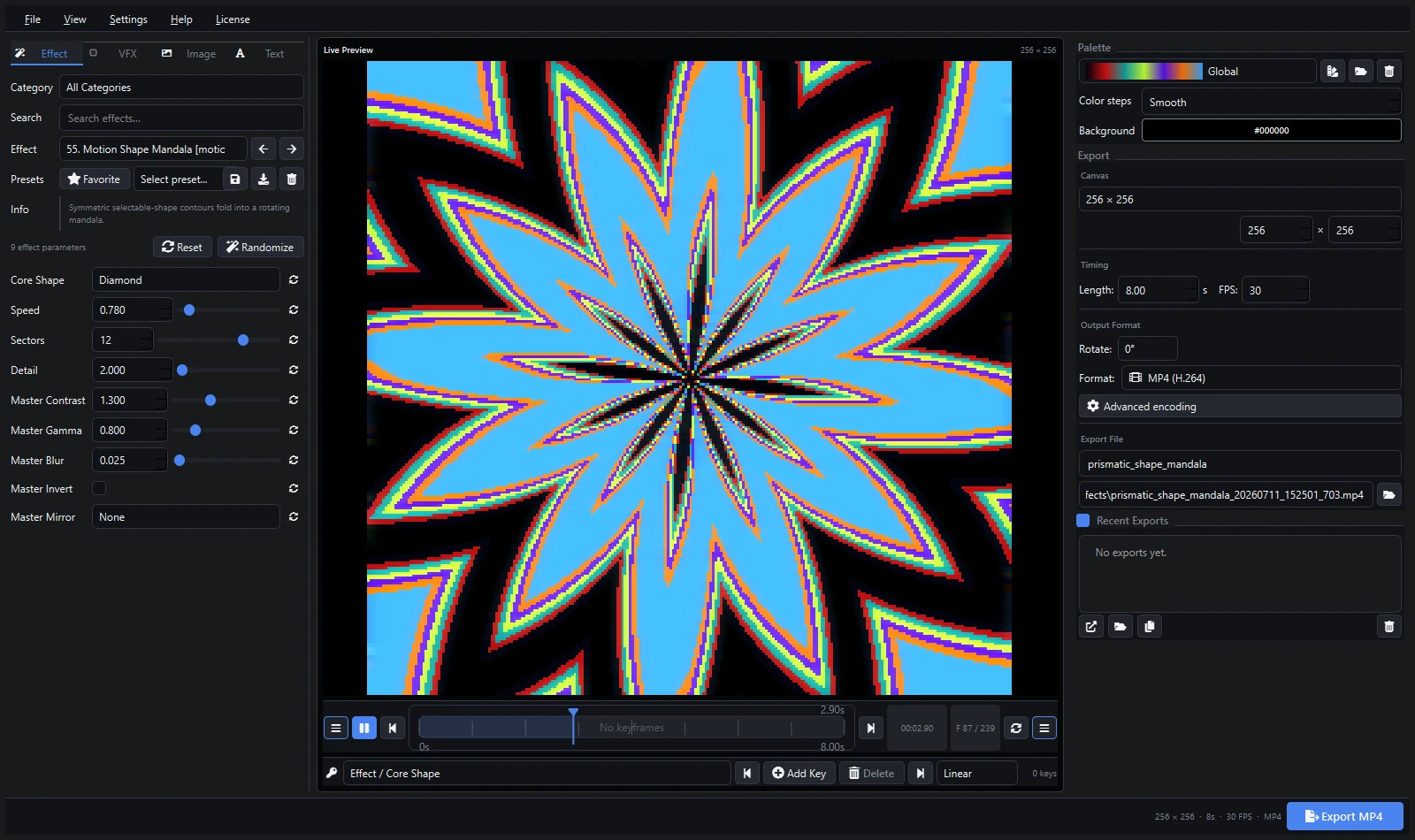
Import images and convert them to pixel LED animations
What is Pixel LED Animator 3?
Pixel LED Animator 3 is a dedicated software tool for creating pixel LED effects that can be exported to any LED control software. Unlike general-purpose animation tools, it’s specifically designed for the LED display industry, with features tailored to common LED matrix resolutions, frame rates, and file formats.
Key capabilities:
- Create custom animations from scratch using built-in effect templates
- Import images and convert them to LED-compatible animations
- Export to multiple formats (AVI, SWF, and more)
- Real-time preview of effects before export
- Support for various LED matrix sizes and configurations
Step 1: Download and Install Pixel LED Animator 3
Let’s get the software set up:
- Download the Software: Head over to the Pixel LED Animator 3 official website and download the latest installation file.
- Install the Software: Run the installer and follow the on-screen prompts to install Pixel LED Animator 3 on your computer.
- Register the Software: Open the program, and you’ll be prompted to enter your email and license key. Enter these details to register and activate your software.
- Check for Updates: Once installed, check for any available updates to ensure you have the latest features and bug fixes.
Step 2: Setting Up Your Project
Proper project setup is crucial for creating effects that match your LED hardware:
- Launch the Program: Open Pixel LED Animator 3 to access the main workspace.
- Set Effect Dimensions: Define the width and height of your pixel LED matrix. Common sizes include 16×16, 32×32, 16×32, or custom dimensions to match your specific LED panel layout.
- Set Frame Rate (FPS): Choose the frames per second for your animation. Common choices:
- 30 FPS: Smooth animation, good file size
- 60 FPS: Very smooth, larger file size — ideal for fast-moving effects
- 25 FPS: Standard for video compatibility
- Set Duration: Determine how long your effect should run — from a few seconds to several minutes.
- Adjust Color Depth: Choose between 8-bit, 16-bit, or 24-bit color depending on your LED controller’s capabilities.
Step 3: Designing Your Effects
This is where the creativity happens:
- Browse Effect Templates: On the left panel, explore the library of built-in effect templates and tools — including gradients, text effects, geometric patterns, and particle simulations.
- Select a Base Effect: Pick an effect that closely matches your vision. You can heavily modify any template to create unique results.
- Customize Parameters: Adjust variables like:
- Speed: Control how fast the animation plays
- Colors: Modify the color palette and gradients
- Direction: Set the movement direction (up, down, left, right, or custom paths)
- Intensity: Adjust brightness and contrast
- Scale: Resize elements within your matrix
- Use the Live Preview: The real-time preview window shows exactly how your effect will look on your LED display — no need to guess or test blindly.
Pro Design Tips
- Start Simple: Begin with basic color transitions and gradually add complexity
- Use Contrast: High-contrast colors (like blue/orange or white/red) create more visual impact
- Consider Your Audience: Fast effects work well for dance floors, while slower effects suit ambient installations
- Test Different Speeds: An effect that looks great at 30 FPS might be too fast or too slow at 60 FPS
Step 4: Rendering and Exporting Your Animation
Once your effect is ready, it’s time to render and export:
- Render the Animation: Click the “Render” button on the right panel to process your effect into a playable animation.
- Choose Export Format: Select your desired file format:
- AVI: Best compatibility with LED Edit and most LED controllers
- SWF: Smaller file size, good for web and some LED software
- Image Sequence: Export individual frames as PNG or JPG files
- Configure Export Settings: Adjust compression, quality, and resolution settings for optimal results.
- Enable Auto Export: For workflow efficiency, turn on the “Auto Export” feature, which automatically exports files immediately after rendering.
- Save Your Project: Always save the project file (.pla format) so you can edit your effects later.
Step 5: Importing Your Effects into Your LED Software
Now let’s bring your animations to life on actual LED hardware:
- Run Your LED Software: Open the LED control software of your choice (LedEdit, Jinx! LED, etc.).
- Configure Your LED Layout: Set up your LED matrix dimensions in the software to match your physical hardware configuration.
- Import Your Effects: Use the import function to load the AVI, SWF, or image sequence files you exported from Pixel LED Animator 3.
- Assign to Channels: Map your imported effects to the appropriate LED output channels.
- Adjust Timing: Fine-tune the playback speed and loop settings in your LED software.
- Test on Hardware: Apply the effects to your LED matrix and verify they display correctly.
Troubleshooting Import Issues
| Problem | Solution |
|---|---|
| Effect doesn’t fit screen | Re-export with correct matrix dimensions |
| Colors look wrong | Check color depth settings |
| Animation is choppy | Lower FPS or reduce complexity |
| File won’t import | Try a different export format (AVI → SWF or vice versa) |
Tips for Creating Truly Stunning Effects
- Layer Multiple Effects: Combine 2-3 simple effects in layers to create complex, multi-dimensional animations that stand out
- Sync with Music: Use music visualization tools or manually time your effects to create synchronized light shows
- Use Gradients: Smooth color transitions look more professional than hard cuts between colors
- Add Text Elements: Animated text effects are perfect for signs, logos, and promotional displays
- Incorporate Images: Convert logos and graphics into pixel LED effects for branding at events
Conclusion
By following these steps, you’ll be well on your way to designing mesmerizing pixel LED animations. Whether you’re crafting animations for a high-energy VJ set, festive holiday lights, a professional stage production, or an architectural installation, Pixel LED Animator 3 offers everything you need to bring your creative ideas to life.
Ready to get started? Download Pixel LED Animator 3 from the official website and let your creativity shine!
Looking for ready-made effects? Check out our guide on downloading thousands of pixel LED effects for instant inspiration.