“Class Not Registered” is the most common LEDEdit 2014 error on Windows 10 and 11. It appears when you double-click the EXE or try to open File → Open, and the app refuses to start. The message points to missing ActiveX registrations — mainly COMDLG32.OCX and MSCOMCTL.OCX — not to a broken download. Fix takes two minutes once you register the right files.
Recommended for new shows: LEDEdit Pro 2026
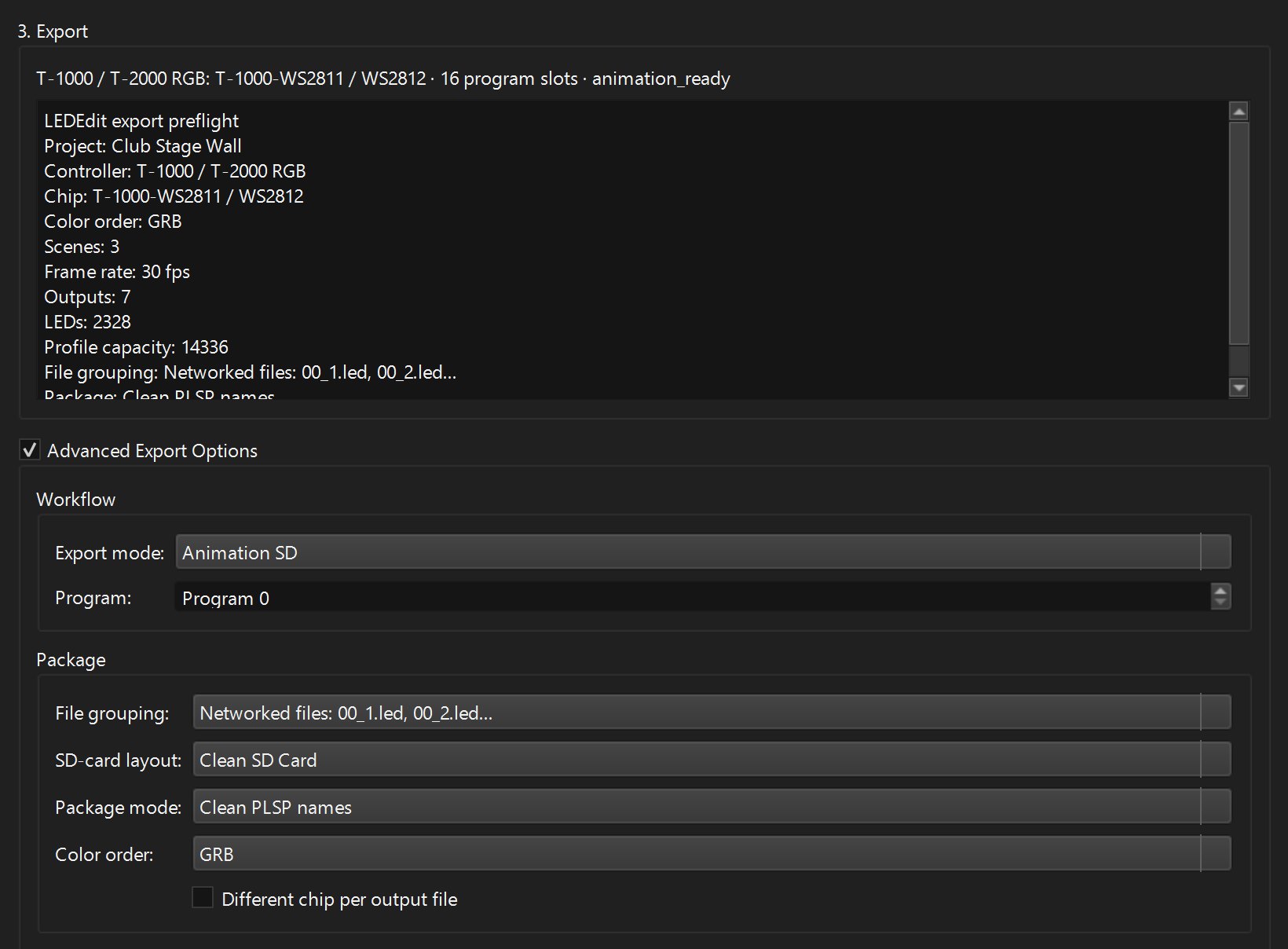
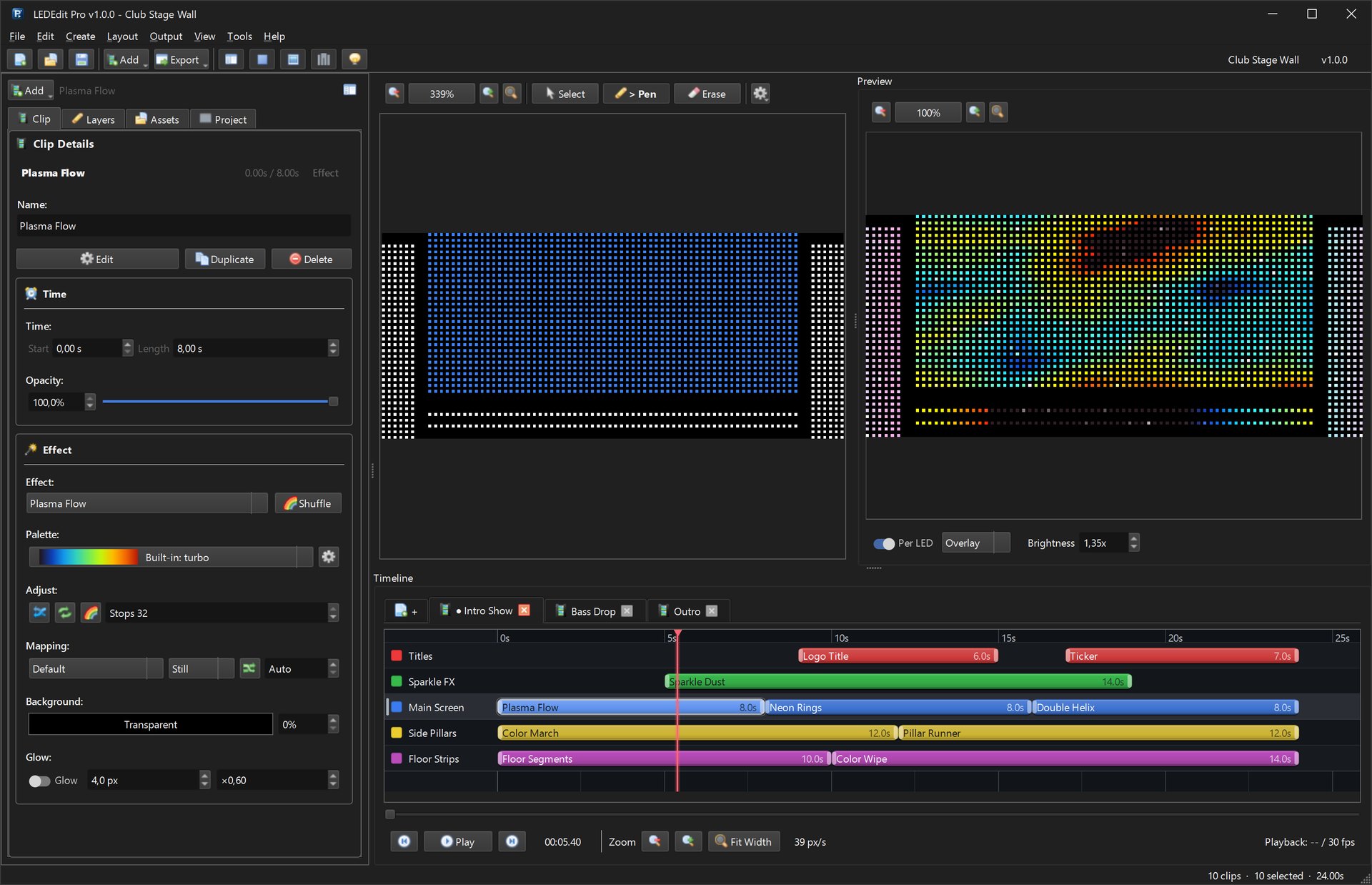
The download above is the old free community release (good for existing setups). For new projects use LEDEdit Pro 2026 — multi-layer timeline, 151 effects, LED Layout Creator with DXF import/export, live per-LED preview and direct .led export for 19 controller families.
Why the error happens
LEDEdit 2014 was built with Visual Basic 6 and relies on legacy COM components that Windows 10/11 no longer registers by default:
COMDLG32.OCX— common file dialogs (Open/Save)MSCOMCTL.OCX— tree view and status barsMSCOMCT2.OCX— date picker used by schedule features
On 64-bit Windows these files live in C:\Windows\SysWOW64\, not System32. If they are missing or unregistered, any call to CoCreateInstance fails and LEDEdit shows:
Run-time error '713':
Class not registered.
You need the following file to be installed on your machine.
MSSTDFMT.DLL
or
Component 'COMDLG32.OCX' or one of its dependencies not correctly registered:
a file is missing or invalid
Tip: Do not download random OCX files from the web. Use the ones already in your LEDEdit 2014 ZIP under the
RepairorSystemfolder, or the versions shipped with Windows.
Quick checklist before you start
- Close LEDEdit completely (check Task Manager — no
LedEdit2014.exerunning) - Put LEDEdit in a short path like
C:\LEDEdit2014\(no accents, no OneDrive sync) - Have an administrator account ready — registration writes to HKLM
- Unblock the ZIP: right-click → Properties → check Unblock if the button appears
Fix 1: Register COMDLG32.OCX and MSCOMCTL manually (works in 90% of cases)
Open Command Prompt as Administrator (Start → type cmd → right-click → Run as administrator). Then run the commands for your Windows bitness.
For 64-bit Windows 10/11 (almost every modern PC):
:: Register 32-bit COM components in SysWOW64
regsvr32 C:\Windows\SysWOW64\COMDLG32.OCX
regsvr32 C:\Windows\SysWOW64\MSCOMCTL.OCX
regsvr32 C:\Windows\SysWOW64\MSCOMCT2.OCX
regsvr32 C:\Windows\SysWOW64\MSSTDFMT.DLL
You should see DllRegisterServer succeeded for each. If a file is missing, copy it first from your LEDEdit folder:
copy "C:\LEDEdit2014\Repair\COMDLG32.OCX" C:\Windows\SysWOW64\
copy "C:\LEDEdit2014\Repair\MSCOMCTL.OCX" C:\Windows\SysWOW64\
For 32-bit Windows (rare), replace SysWOW64 with System32 in every path.
After success, launch LedEdit2014.exe again — do not restart yet.
Got “The module failed to load”? You opened a normal CMD, not an elevated one. Close it and reopen with Run as administrator. The error code 0x8002801c means the same thing.
Fix 2: Use the Repair folder batch file (one double-click)
Most LEDEdit 2014 bundles include a Repair\ folder with Repair.bat or Register.bat. It does exactly the same as Fix 1:
- Open
C:\LEDEdit2014\Repair\in Explorer - Right-click
Repair.bat→ Run as administrator - A black window flashes each
regsvr32line with “succeeded” — press any key to close when prompted
Screenshot described: Explorer showing Repair folder with COMDLG32.OCX, MSCOMCTL.OCX, Repair.bat visible; command window listing DllRegisterServer succeeded three times.
If your ZIP has no Repair folder, create one: copy the OCX files from C:\LEDEdit2014\ into C:\Windows\SysWOW64\ as shown in Fix 1. The result is identical.
Fix 3: Run as administrator + Windows 7 compatibility
Even with OCX registered, Windows may virtualize file dialogs unless you elevate:
- Right-click
LedEdit2014.exe→ Properties → Compatibility - Check Run this program in compatibility mode for: Windows 7
- Check Run this program as an administrator
- Check Disable fullscreen optimizations
- Apply → OK
Try the app again. Use File → Open — if the dialog shows, the fix is permanent. Pin the EXE to Start so the elevation prompt appears automatically.
Fix 4: Unblock antivirus and controlled folder access
Windows Security and third-party AV sometimes quarantine MSCOMCTL.OCX right after registration.
- Windows Security → Virus & threat protection → Protection history → Allow the blocked OCX if flagged
- Ransomware protection → Controlled folder access → Allow an app through → add
LedEdit2014.exe - Add
C:\LEDEdit2014\to Exclusions under Virus & threat protection settings
Without this, the error returns after every reboot.
Fix 5: Reinstall Visual Basic 6 runtime (last resort)
If all four still fail — rare — the VB6 runtime itself is damaged:
- Download Visual Basic 6.0 SP6 Runtime from Microsoft (search “VisualBasic6-KB896559”)
- Run installer as administrator
- Re-run Fix 1 once more
- Reboot
You need this only on stripped-down Windows N or LTSC editions. Normal Home/Pro never needs it.
Verify the fix
- Launch LEDEdit → Help → About should show version without error
- Click File → Open — the native Windows file dialog must appear
- Drag an AVI onto the timeline — preview works
- Export a tiny test: File → Export → .led for
T-1000-WS2811— export window shows without “Class not registered”
If all four pass, the registration is solid.
Still broken? Check these edge cases
- OneDrive Documents folder — move LEDEdit out of a synced folder; OneDrive locks OCX files.
- Non-ASCII Windows username — move to
C:\LEDEdit2014\away fromC:\Users\José\Documents\. - 32-bit OCX on 64-bit regsvr32 — use
C:\Windows\SysWOW64\regsvr32.exeexplicitly:C:\Windows\SysWOW64\regsvr32.exe C:\Windows\SysWOW64\COMDLG32.OCX. - Corrupted registry — open
regedit, checkHKCR\CLSID\{...}permissions; runsfc /scannowonce. - Multiple LEDEdit copies — delete old copies to avoid loading the wrong OCX from a stale path.
Prevent the error forever
- Keep the installed folder read-only for standard users, write only for export.
- Don’t move LEDEdit after registering — re-register if you move it.
- Update to LEDEdit Pro 2026 for new projects: it is 64-bit, signed, needs no OCX and exports directly to all 19 controller families without compatibility tricks.