The first part of the run plays perfectly and the rest stays dark — or shows a frozen colour. Before you replace pixels, check four things in LEDEdit Pro 2026. Most of the time it is a count, a limit or a numbering gap.
1. Does the layout have as many LEDs as the strip?
A controller only sends data for the LEDs in the file. If your layout has 300 LEDs on a port and the strip has 350, the last 50 get nothing.
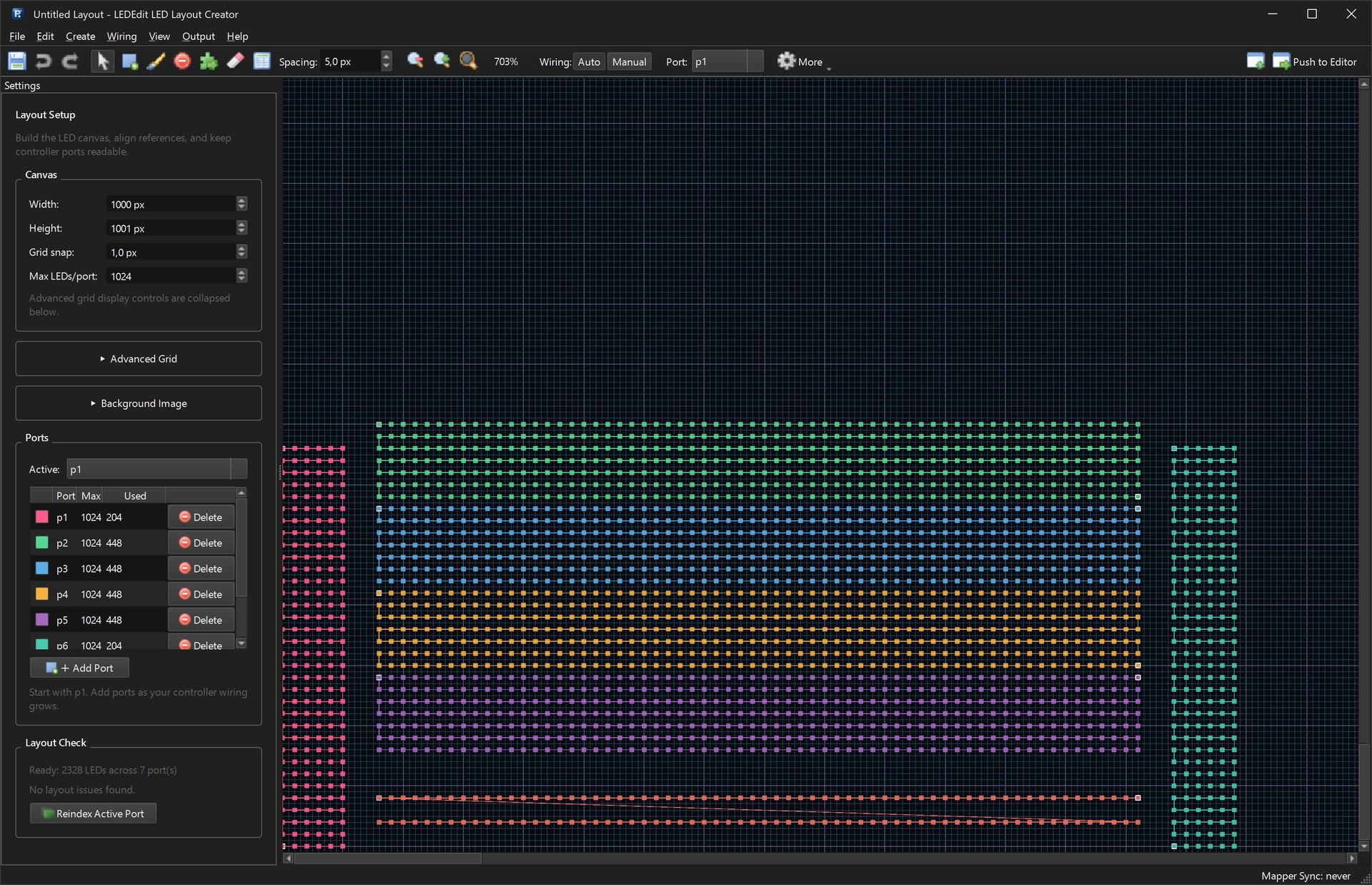
Open Layout → Open LED Layout Creator… and look at the Ports table:
- Used = LEDs on that port in your layout.
- Max = the limit you set for that port.
If Used is lower than the real pixel count, add the missing LEDs to that port. Set the port as Active and use Draw LEDs or Create → Pattern Builder… with Add to current port. Then Push to Editor and export again.
2. Is a port over its limit?
Every controller output has a maximum. In the export profiles that is 2,048 LEDs per output for T-1000, T-4000 and K-8000 / T-8000, for example — see the controller pages.
LEDEdit Pro warns you in three places:
- Layout Check in the LED Layout Creator shows an error such as Port 1 overflow (204/200) when Used is above Max.
- The export preflight lists Port p1 has … LEDs, above the … LED profile limit, and the Route Preview status says Too many LEDs.
- If you export anyway, the export stops with Export failed and names the limit. It does not write a file that silently cuts off your run.
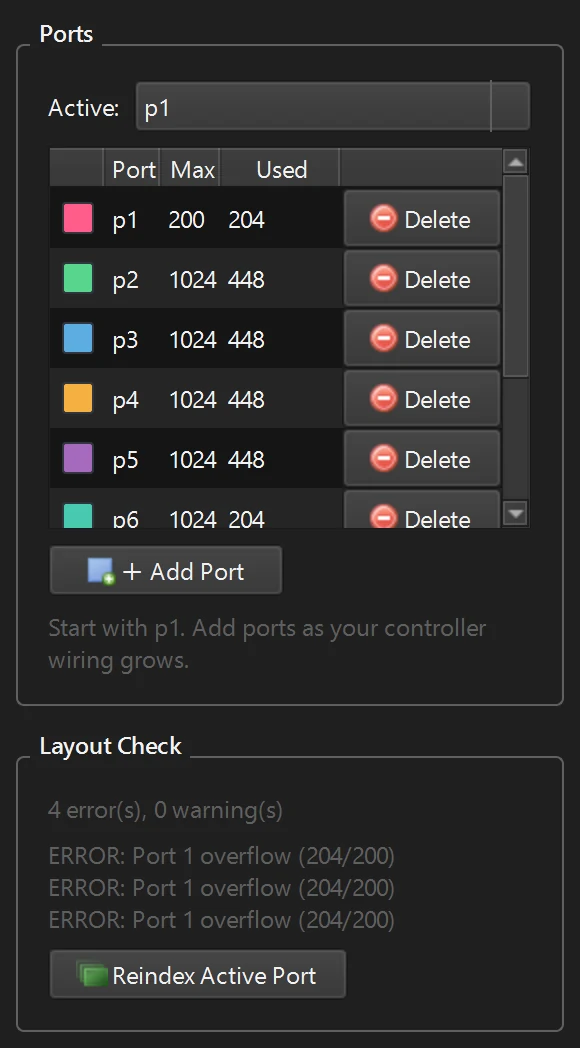
Set the limits to match your controller. Max LEDs/port (Canvas section) applies to new ports. For ports that already exist, edit the number in the Max column.
Fix an overflow:
- Split the run: move part of the LEDs to a free output. Right-click a port → Move LEDs To…, or use Wiring → Auto Number / Ports… with LEDs per port set to your limit.
- More outputs: a multi-output controller (T-4000, K-8000 / T-8000, T8K-U…) spreads a big layout over several outputs.
3. Is there a gap in the numbering?
If LEDs were deleted or moved, a port can have a hole in its numbering. Layout Check then shows Gap in wiring sequence for port N.
- Wiring → Fix Wiring Gaps… renumbers the LEDs and repairs the wiring.
- Reindex Active Port (under Layout Check) or right-click a port → Reindex Port renumbers one port from zero.
Layout Check lists the first three issues and counts the rest in its headline. Fix them until it says Ready: … LEDs across … port(s), then Push to Editor and export again.
4. Still dark? Check the hardware
If the file is right, the problem is on the strip side:
- One dead or damaged pixel can stop the data for every pixel after it. If the dark part always starts at the same pixel, check that pixel and its solder joints.
- Voltage drop on long runs makes the end dim, flicker or change colour. Feed power at more points, as your strip’s documentation describes.
- Data cable too long between controller and first pixel, or a missing common ground.