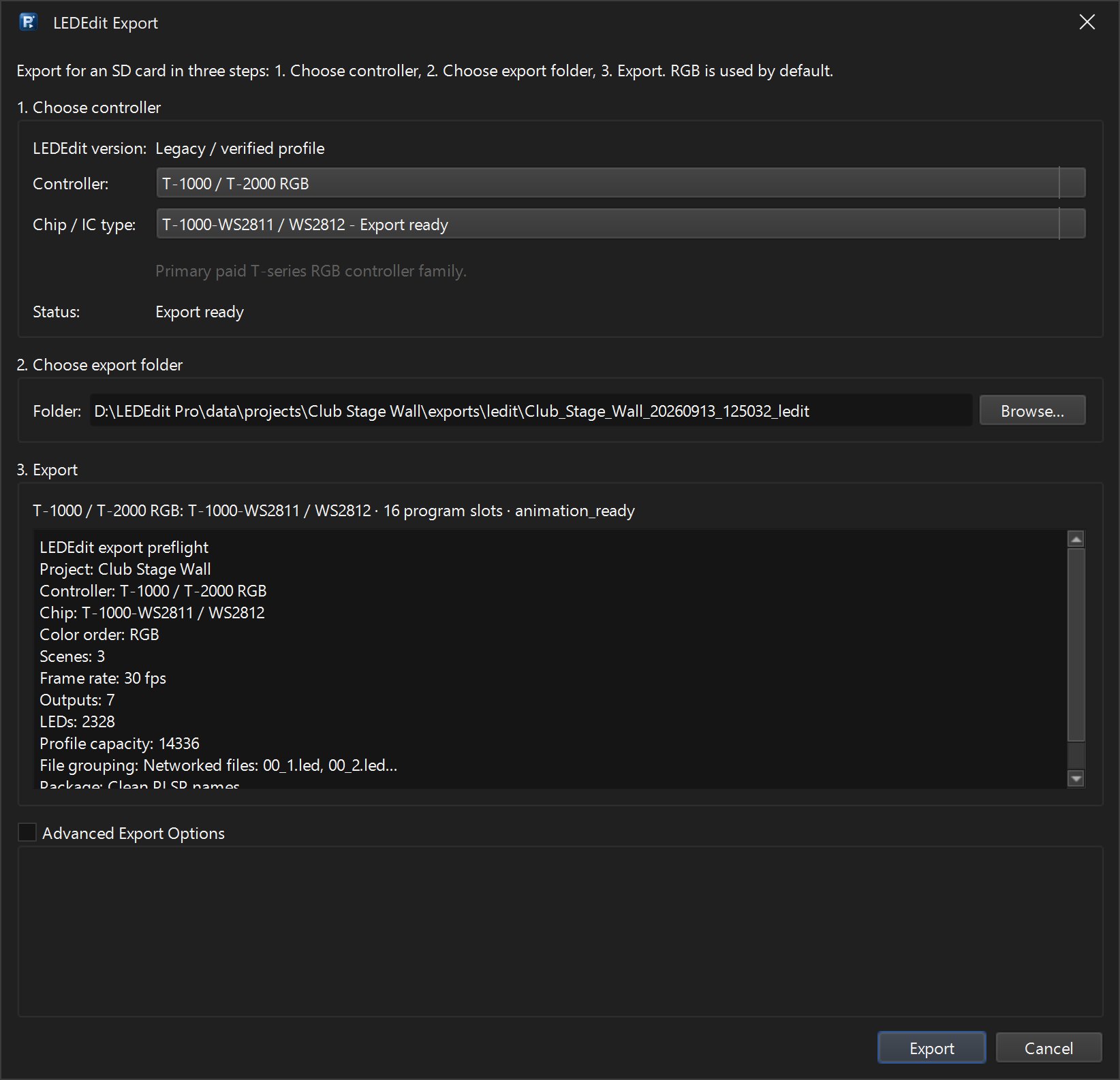
LEDEdit Pro 2026 writes .led SD-card files for 19 controller families. LED controllers come in many firmware and hardware revisions, though, and now and then a controller will not play a file — it stays dark, shows the wrong colours, or reports a card error.
You do not have to give up on your show. LEDEdit Pro can hand over the layout and the video in formats the free LEDEdit versions import, and the free version that already works with your controller then writes the .led file.

Before you switch: quick checks
Most .led problems come from export settings, not from the file itself:
- Controller family — pick the exact model printed on the controller (for example T-1000 vs. T-1000 Type 47).
- Chip / IC type — it must match your pixels (WS2811, WS2812B, …).
- Colour order — RGB, GRB and so on; wrong order gives wrong colours, not a dark screen.
- SD card — FAT32, file in the root or LED folder your controller expects, no leftover files from other programs.
If the controller still does not play the file, use the fallback below.
Fallback: export DXF + AVI and finish in free LEDEdit
1. Export the LED layout as DXF
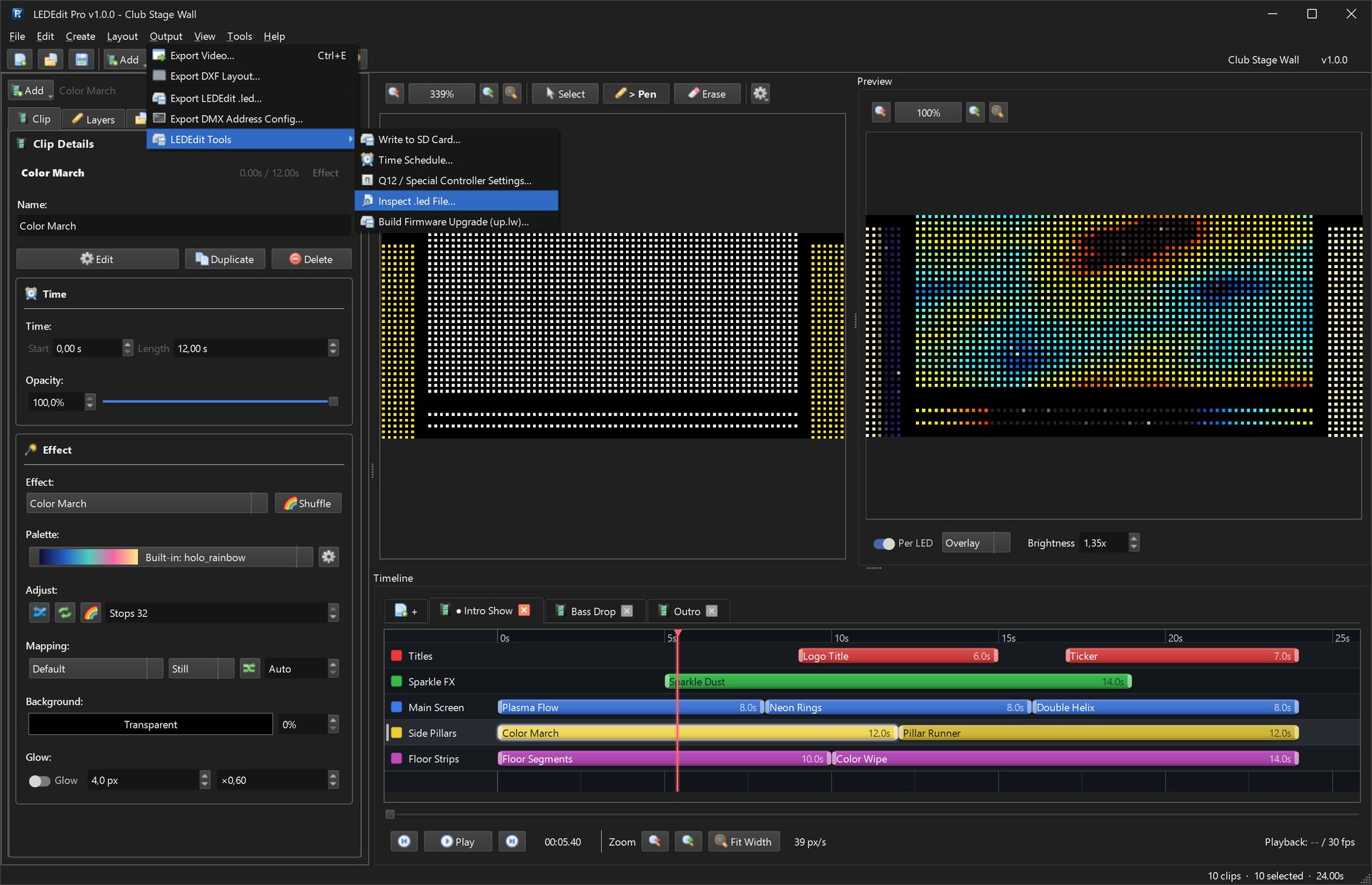
In LEDEdit Pro 2026 choose Output → Export DXF Layout…. The DXF contains every LED position, port and wiring order from your layout, and is saved in your project’s exports folder.
2. Export your show as an AVI video
- Open Tools → Settings and set the export format to AVI — RAW Uncompressed (the most compatible choice for older LEDEdit versions).
- Choose Output → Export Video… (Ctrl+E) and pick the scene you want.
The video uses your project canvas, which LEDEdit Pro sized from your LED layout. That keeps every LED on the same pixel in the DXF and in the AVI — do not resize or crop the video afterwards.
3. Build the .led file in free LEDEdit
- Install the free LEDEdit version that works with your controller from our downloads page.
- Import the DXF layout into a new LEDEdit project.
- Add the AVI as the video / effect for that layout and check the preview.
- Select your controller and chip type there and export the
.ledfile to the SD card.
Menu names differ between LEDEdit versions, but every version has DXF layout import and AVI video import.
Tips
- Keep the same frame rate in LEDEdit Pro and free LEDEdit so timing matches.
- Export one scene per AVI if your show uses several scenes.
- Large layouts make large uncompressed AVI files — that is normal and keeps colours exact.
Still stuck?
Tell us which controller model and firmware you use and attach the exported .led file. Controller reports help us add or fix support in the next LEDEdit Pro update.