You exported, copied the files, inserted the card — and the controller stays dark, blinks an error or plays nothing. Work through these five checks in LEDEdit Pro 2026 before you change hardware.
1. Read the export preflight
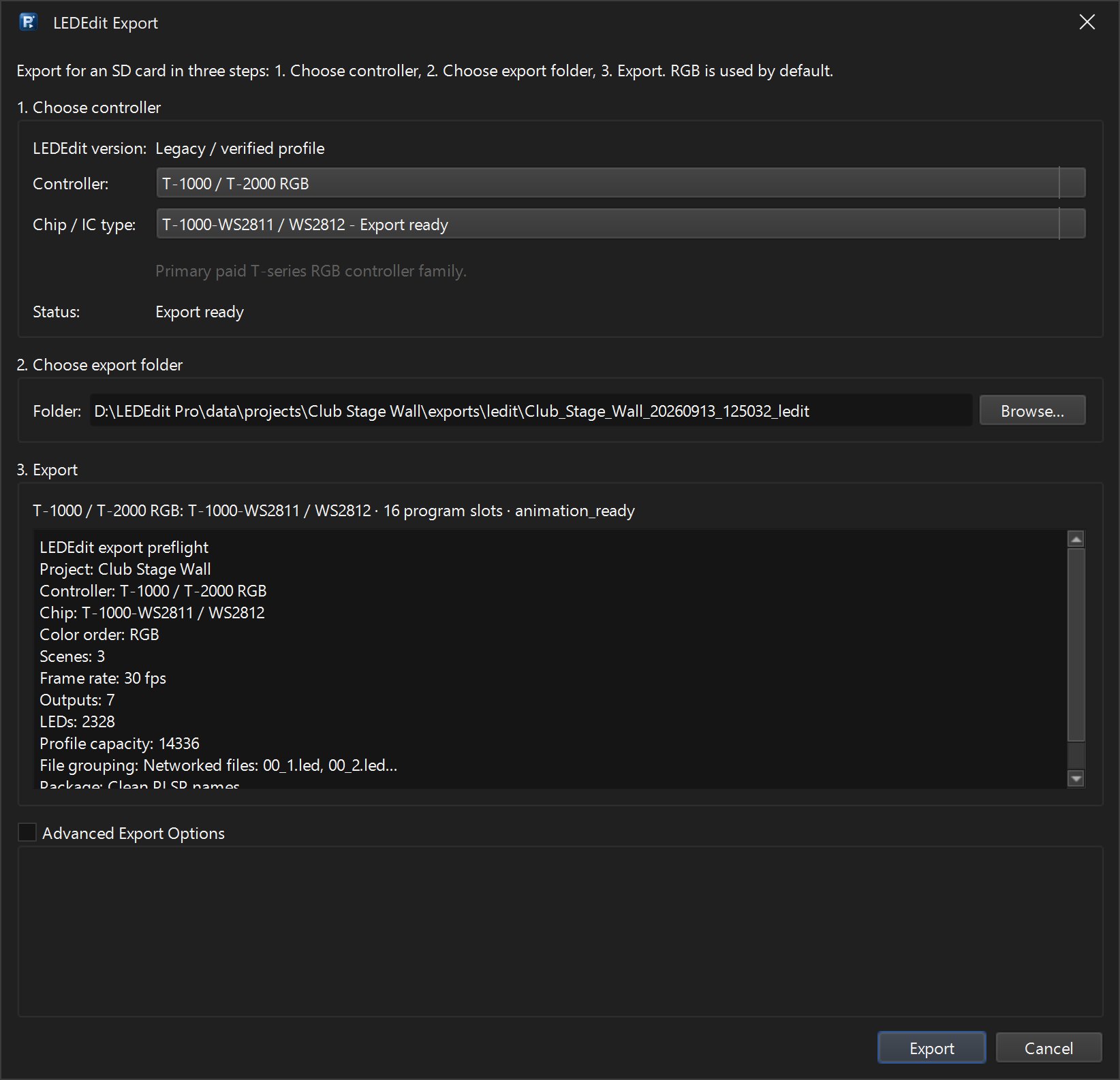
Open Output → Export LEDEdit .led… again. The preflight box lists what will be written: controller, chip, colour order, scenes, frame rate, outputs, LEDs and profile capacity.
- Controller must be the family printed on your controller. T-1000 / T-2000 RGB and T-1000 Type 47 are different profiles.
- Chip / IC type must match the pixels.
- A Warnings section means something is off, for example No LEDs will be written, No scenes are selected for export or Port p… has … LEDs, above the … LED profile limit.
- If Status does not say Export ready, that profile is not verified yet. The Export button stays disabled and shows the reason.

2. Check the file names and card layout
Under Advanced Export Options → Package:
- File grouping — Networked files: 00_1.led, 00_2.led… writes one file per output. Single controller: 00_1.led writes one file. K-1000 combined file is for K-1000-style controllers.
- SD-card layout — Clean SD Card puts the files in the root of the card. Multi-controller _LED is for setups with several controllers.
- Package mode — keep the default first. LEDEdit 2026 source names uses the file names LEDEdit 2026 writes. LEDEdit 2025 T-1000 legacy matches old LEDEdit-K 2025 T-1000 / T-1000S WS28xx cards.
If your controller’s manual expects a certain name or folder, match it here.
3. Copy with Write to SD Card
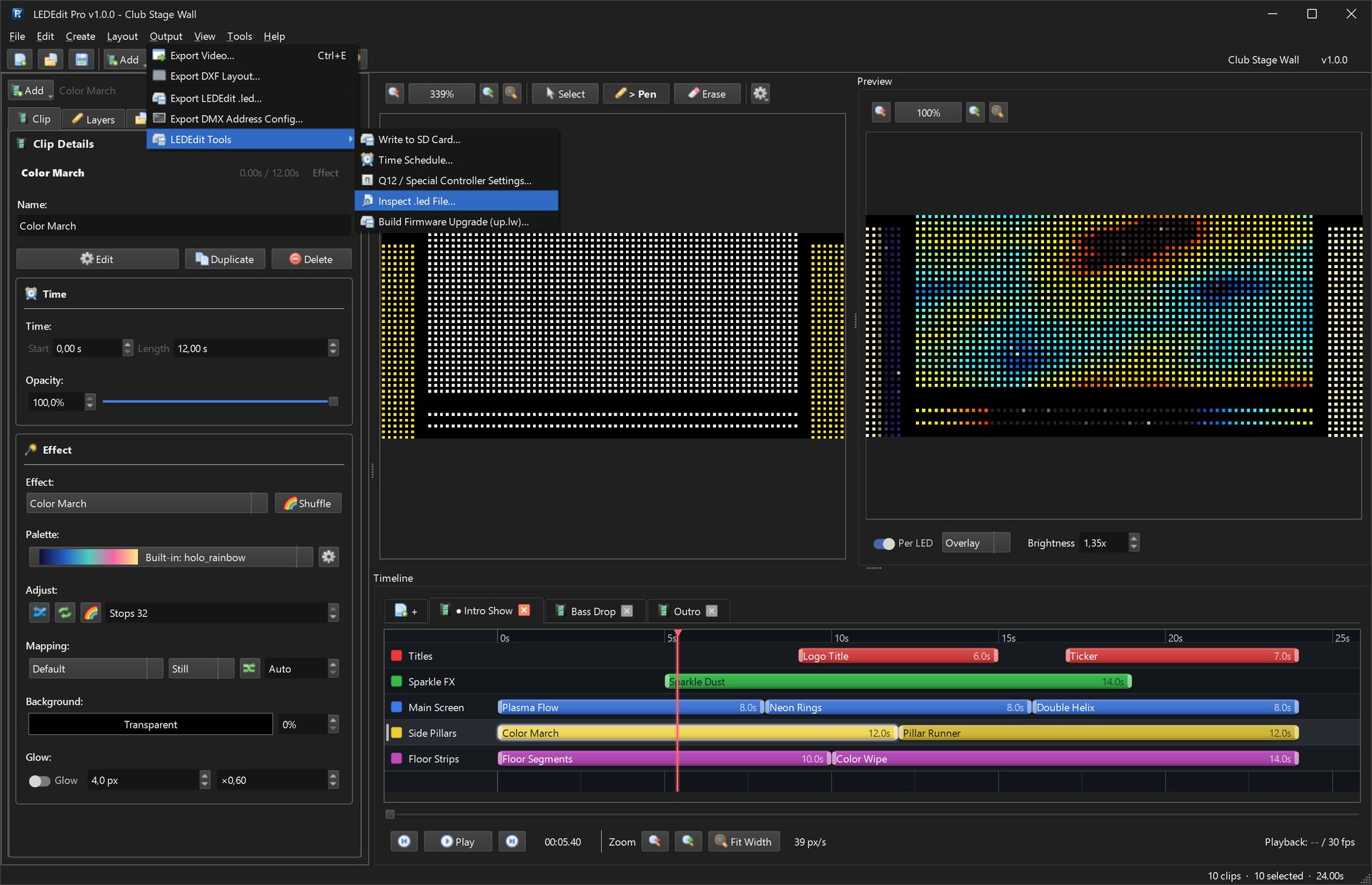
Output → LEDEdit Tools → Write to SD Card…
- Choose the export package folder.
- Choose the SD card (removable drives are suggested first).
- Answer Yes to Delete existing .led files from the target before copying? Old files from other programs are a common reason a controller plays the wrong show or nothing.
The result lists how many files were copied and how many old .led files were deleted.

4. Inspect the file on the card
Output → LEDEdit Tools → Inspect .led File… — open the file from the SD card, not from the export folder.

| Field | What to check |
|---|---|
kind | animation for a show. unknown means it is not a LEDEdit animation file |
port_count, total_leds | Must match the output and the Used LEDs in your layout |
fps, frame_count | Frames ÷ fps = show length in seconds (720 ÷ 30 = 24 s) |
controller_type, chip_id | Same file exported for the same controller should give the same values |
complete_payload | Must be true. false means the file is shorter than its header says: copy it again, or check the card for errors and free space |
The inspector also reads time schedules (.tst → time_schedule) and DMX address files (dmx_config).
5. Rule out the card and the controller
- Format the card the way your controller’s manual says (many controllers want FAT32) and copy only the new files.
- Try a small card and a short test show.
- If you have a file from the free LEDEdit that plays on this controller, compare it in the inspector. Different
controller_typeorchip_idvalues point to the wrong family or chip.
Still not playing?
Controllers come in many firmware versions. Use the DXF + AVI fallback: export the layout and a video from LEDEdit Pro and let the free LEDEdit that already works with your controller write the .led file.