VJ Loop Studio is a powerful visual effects generator with 85 built-in effect engines. Whether you’re a VJ, lighting designer, or LED enthusiast, it lets you create professional-quality visuals in minutes.
This beginner’s guide will walk you through creating your first LED visual effect from scratch.
What You’ll Need
- VJ Loop Studio — get it on LemonSqueezy
- Windows 10 or 11 with WebGPU support (DirectX 12 or Vulkan)
Step 1: Install and Launch
- Download VJ Loop Studio from LemonSqueezy after purchase
- Run the installer
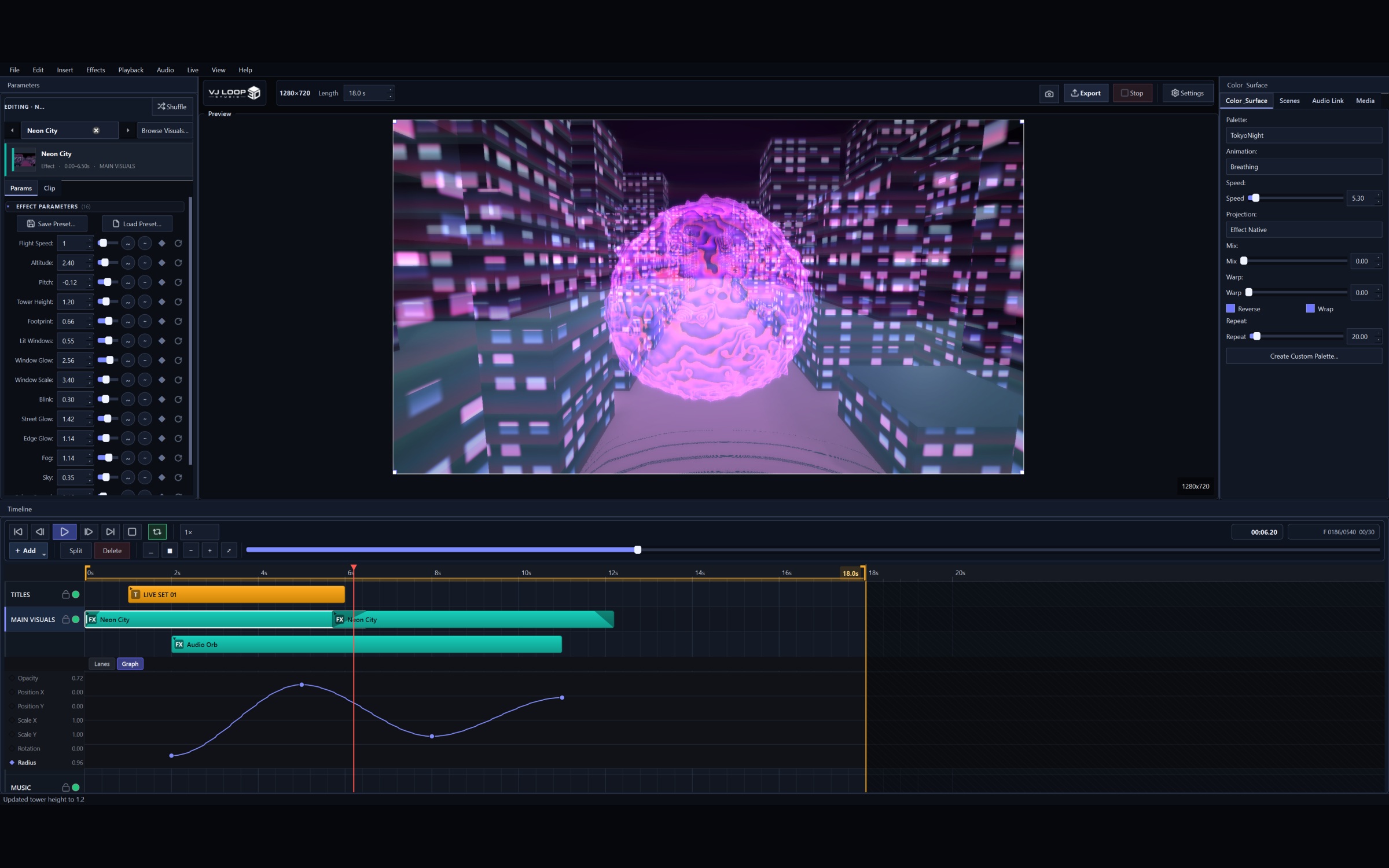
- Launch the application — you’ll see the main interface with the preview window and effects list
Step 2: Choose an Effect Generator
VJ Loop Studio has 85 effects across multiple categories:
- Browse the Effects Library panel
- Click any effect to preview it in real-time
- Start with “Matrix Rain” — a popular choice for LED displays
Step 3: Customize Your Effect
Each effect has adjustable parameters:
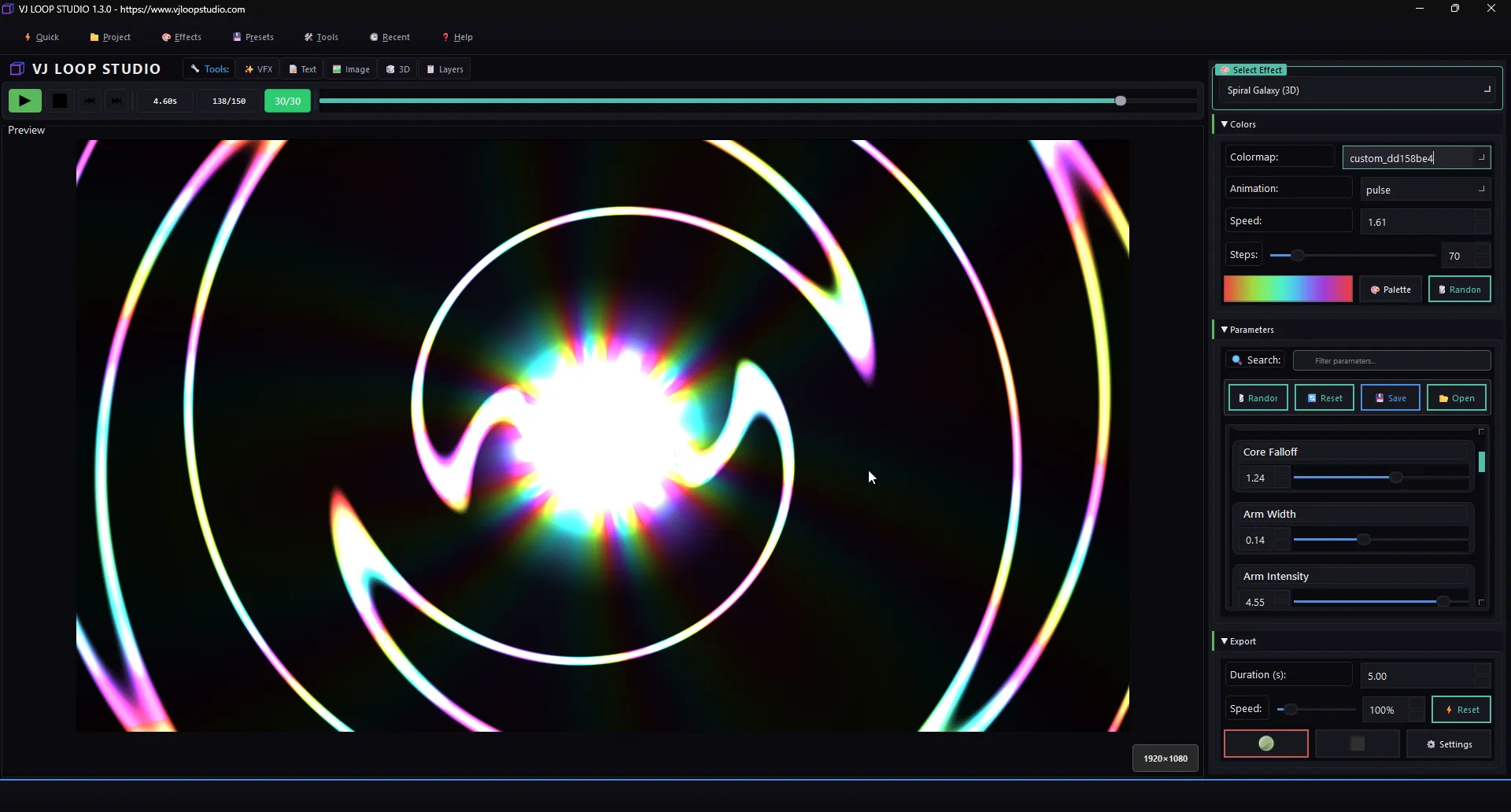
- Colors — use the color palette editor to choose your scheme
- Speed — adjust animation speed
- Scale — fit the effect to your LED matrix size
- Direction — change movement direction
Try the Color Palette Editor
VJ Loop Studio’s built-in palette editor lets you create custom color schemes with 13 animation types:
- Cycle — rotate through colors
- Pulse — fade in and out
- Rainbow Wave — smooth rainbow transitions
- Sparkle — random color flashes
Step 4: Preview in Real-Time
The preview window shows your changes instantly. Use this to fine-tune:
- Adjust parameters while watching the preview
- Test different color combinations
- Check how the effect looks at your target resolution
Step 5: Export Your Visual
- Click Export
- Choose format:
- MP4 — universal, works with everything
- AVI — for Jinx! and Glediator
- MOV — for Madrix and LedEdit 2016+
- Set resolution (HD, Full HD, or 4K)
- Set duration and frame rate
- Click Render
Step 6: Use in Your LED Software
- Madrix — drag MOV file directly into your project
- Jinx! — open AVI file via File → Open Media
- LedEdit — import MOV or MP4 file
- Resolume — drag MP4 file into a layer
5 Effects to Try First
| Effect | Category | Best For |
|---|---|---|
| Matrix Rain | Matrix | LED walls, cyberpunk themes |
| Neon Orbit | Neon | Club lighting, stage backdrops |
| 3D Cubes | 3D | Architectural installations |
| Pulsing Circles | Basic | DJ visuals, music sync |
| Fractal Tunnel | Tunnels | Immersive environments |
Pro Tips for Beginners
- Start simple — master one effect before layering
- Use presets — save your favorite settings for quick access
- Match resolution — export at the same resolution as your LED matrix
- Loop seamlessly — enable loop mode for continuous playback
85 effects generators, 4K/8K export, real-time preview. Compatible with LedEdit, Madrix, Jinx!, Resolume, and more.